
Introduction — TL;DR
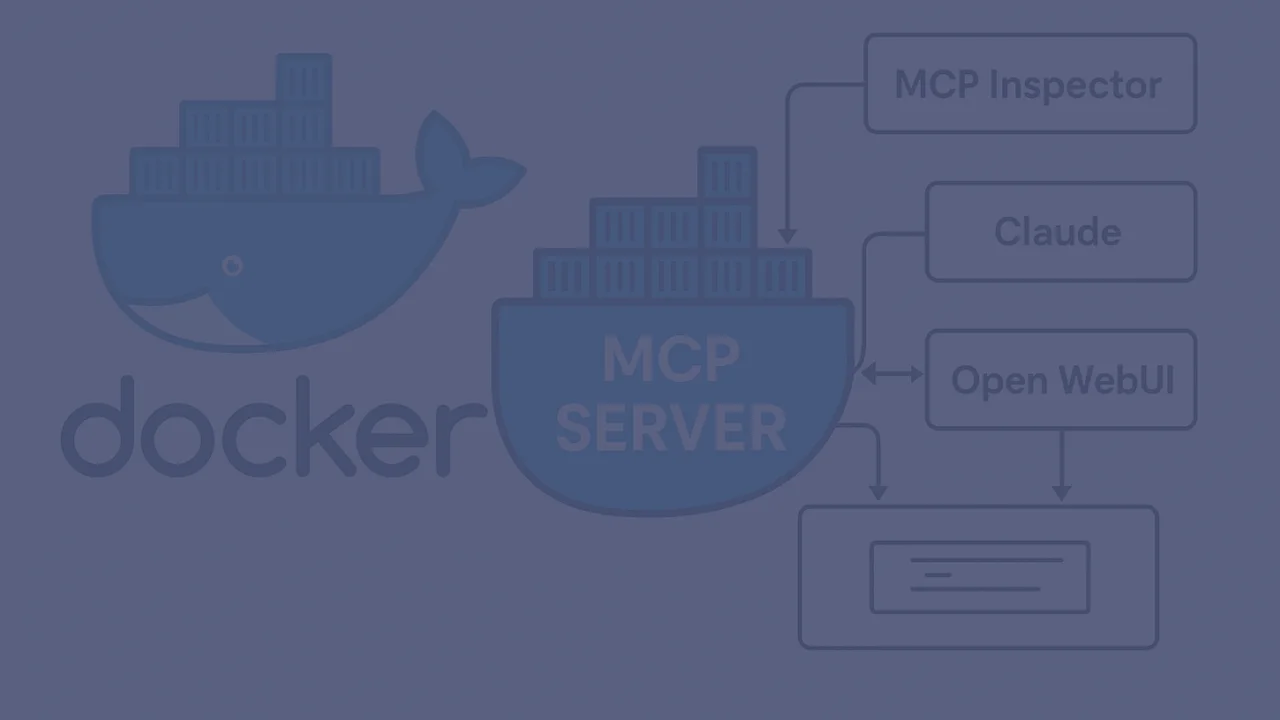
Many MCP server examples target Python and TypeScript implementations, yet SDKs are equally available for Java, C# and others. The same picture emerges when it comes to integrating MCP servers into hosts like Claude. We at evanto, however, usually deploy our projects via Docker — which raised the question for us of how we can make MCP servers developed in C# and hosted in Docker available to both local LLMs and the LLMs from the major providers such as OpenAI, Anthropic and others. As a first step, this article therefore shows how to wire a Dockerised MCP server into the following hosts:
MCP Inspector (test)
Claude (for Anthropic LLMs)
Open WebUI (for LLMs hosted locally via Ollama)
A follow-up article will cover building your own host for MCP servers. It was also important to us that the following examples support both transport types — stdio and SSE — which, as of today, requires a wrapper in Claude for SSE, for example.
Topics not covered
The following article does not cover topics such as JSON-RPC 2.0 protocol specifics, authentication and security. Those are part of the official documentation.
MCP
Below is a very brief outline of the MCP architecture and the various terms used in it.
What is MCP?
The core idea behind MCP is to integrate external information (for example, from company databases) and action and operation capabilities for a wide variety of tools into LLMs via a standardised path. The MCP documentation uses the nice analogy of a "USB interface" for AI applications, capable of connecting the most diverse software tools — just as USB connects the most diverse devices — over a uniform protocol. The special thing about the MCP protocol is that it goes beyond plain API functionality and is also able to provide meta-information about the available "functions" of the MCP servers ("functions" is a shorthand here — MCP servers can expose different things such as resources, tools and prompts; in addition, clients can make LLM capabilities available to servers via "sampling").
Why MCP?
MCP helps when building agents and complex workflows on top of LLMs. As described above, LLMs frequently need to be integrated with data and tools (e.g. proprietary company databases and workflows). Key points are
a growing list of pre-built integrations the desired LLM can use directly.
the flexibility to switch between LLM providers and vendors and
the option to develop your own, company-specific MCPs (or have them developed).
Architecture
The terms used in MCP warrant a second look, since the "classical" terms client and server are used somewhat differently here, and the host appears as another important entity. The MCP documentation describes the following entities:
MCP hosts: programs such as Claude Desktop, IDEs like Windsurf, Cursor and others, or, for example, your own AI tools that want to access data via MCP.
MCP clients: maintain 1:1 connections to servers (see transport stdio — here the client starts its own instance of the MCP server).
MCP servers: lightweight programs, each of which exposes specific functionality via the standardised Model Context Protocol. Lightweight means that the actual MCP server only handles the "packaging" of the data and functions it provides and the exposure of the corresponding meta-data.
Local data sources: files, databases and services on your computer that MCP servers can access securely.
Remote services: external systems available over the internet (e.g. via APIs) that MCP servers can connect to.
Transports and protocol
The transport layer handles the actual communication between clients and servers. As already mentioned, MCP supports the following transport mechanisms:
stdio transport
uses standard input/output for communication
the client starts its own instance of the server in order to have access rights to the stdio pipe
ideal for local processes
Streamable HTTP transport
uses HTTP with optional Server-Sent Events (SSE) for streaming
HTTP POST for messages from the client to the server
All transports use JSON-RPC 2.0 to exchange messages. However, when using the SDKs this is transparent to the developer and only relevant in the details. More information can be found here.
Hosts
Below we'll look at a few hosts that make it particularly easy to test and try out MCP servers:
MCP Inspector: supports both stdio and SSE transport
Claude: for local MCP servers currently only supports the stdio transport; SSE-based MCP servers can be integrated via an additional tool (e.g. MCP Hub Gateway)
Open WebUI (for local LLMs hosted via Ollama): supports OpenAPI-compatible tool servers — i.e. an OpenAPI wrapper such as MCPO is required here.
C# client: integration is shown here using the NuGet package "ModelContextProtocol"
Integrating MCP servers into hosts
Below we show how to integrate an MCP server running in a Docker container into various typical hosts — both for "mainstream" LLMs and for local LLMs.
Via stdio transport
The particular thing here is the fact that an instance of the Docker container with the MCP server is started by the MCP client (built into the host) itself. Different hosts (Claude, Cursor, …) using the same MCP server therefore each start their own instance as a Docker container (which can nicely be observed in the container list of Docker Desktop). Very important for MCP servers you build yourself: the implementation must not (as is often the case) write logging output to stdout (e.g. with Console.Write(..)) — only valid JSON-RPC 2.0 messages may appear on stdout. Often, integrated libraries also log to stdout, such as Entity Framework under .NET; this needs to be explicitly suppressed if necessary. In .NET (Core), for example, one possible approach would be:
logging.AddFilter("Microsoft.EntityFrameworkCore", LogLevel.None);
Output via Console.Error (to stderr), however, is possible.
MCP Inspector
The MCP Inspector is an extremely useful tool for quickly testing MCP servers. Here is a simple example for the mcp/time server via Docker:
The Inspector is started (assuming a Node.js installation) via:
npx @modelcontextprotocol/inspector
The parameters of the docker call are important:
| Parameter | Explanation |
|---|---|
| -i or —interactive | Keeps the container's standard input (STDIN) open even when no terminal is attached. This way you can, for example, pipe data into the container: |
| `echo "hello" | docker run -i your-image` |
| —rm | Automatically removes the container as soon as it's stopped. Prevents "Exited" containers from piling up on the host. |
Claude
MCP server configuration in Claude Desktop is done via the following config file:
Mac: ~/Library/Application Support/Claude/claude_desktop_config.json
Win: %APPDATA%\Claude Desktop\config.json
An entry for a Dockerised MCP server with stdio transport:
"TimeMCP": {
  "command": "docker",
  "args": [
    "run",
    "-i",
    "--rm",
    "mcp/time"
  ],
  "env": {}
}
Important: After changes to the config file, Docker Desktop must be restarted. Problems with MCP servers are then shown immediately after the restart. Successfully installed MCP servers along with their tools can be viewed by clicking the "Search and tools" button directly under the chat input box.
The Claude logs are helpful for debugging your own MCP servers:
Mac: ~/Library/Logs/Claude/mcp*.log
Win: %APPDATA%\Claude\logs\mcp*.log
Linux: ~/.config/Claude/logs/mcp*.log
Claude Desktop Integrations: Since version 0.10.x, Claude Desktop supports "official" MCP integrations — see the announcement here. These must, however, support OAuth authentication; your own implementations can, for example, be provided with OAuth tools from/via Cloudflare.
Open WebUI
Open WebUI is a popular GUI for local LLMs installed via Ollama. The official quickstart describes various options for starting via Docker; we'd recommend the Docker Compose route, since integrating MCP servers with mcpo requires an additional tool (Open WebUI only supports OpenAPI-compatible tool servers). The reasoning in the Open WebUI documentation for using mcpo mainly relates to lifting the known limitations of the stdio transport and is quite plausible. Here's a corresponding docker-compose.yaml:
services:
  #─────────────────────────────────────────────────────────────────────────────
  # 1) mcpo-wrapper: wraps "docker run -i mcp/time" via mcpo on port 8000
  #─────────────────────────────────────────────────────────────────────────────
  mcpo-wrapper:
    build:
      context: ./mcpo-stdio
      dockerfile: Dockerfile
    container_name: mcpo-wrapper
    # Inside this container, mcpo will listen on 8000 → map that to 8003 on the host
    ports:
      - "8003:8000"
    # Mount the host Docker socket so we can 'docker run' the MCP image
    volumes:
      - /var/run/docker.sock:/var/run/docker.sock
    # Use array form so that the shell sees everything after "sh -c" as one string.
    command:
      - sh
      - -c
      - |
        mcpo --host 0.0.0.0 --port 8000 -- \
          docker run -i mcp/time
    # (Optional) restart policy so that, if anything crashes, it comes back up.
    restart: unless-stopped

  # ─────────────────────────────────────────────────────────────────────────────
  # 2) openwebui: point at local Ollama (port 11434 on the Mac host),
  #    disable auth, mount data volume, restart always.
  # ─────────────────────────────────────────────────────────────────────────────
  openwebui:
    image: ghcr.io/open-webui/open-webui:ollama
    container_name: openwebui
    ports:
      - "3000:8080"
    volumes:
      - open-webui:/app/backend/data
    environment:
      - WEBUI_AUTH=False
      - OLLAMA_BASE_URL=http://host.docker.internal:11434
    extra_hosts:
      - "host.docker.internal:host-gateway"
    depends_on:
      - mcpo-wrapper
    restart: always
volumes:
  open-webui:
The YAML above takes the route of "packaging" mcpo itself into a container via its own Dockerfile. Here's the Dockerfile (in the mcpo-stdio subdirectory):
# 1. Start from a slim Python base so that mcpo can be easily installed
FROM python:3.11-slim

# 2. Install Docker CLI (and its dependencies) so that 'mcpo' can run 'docker run' commands.
#    Clean up apt caches to keep the image small.
RUN apt-get update \
 && apt-get install -y docker.io \
 && rm -rf /var/lib/apt/lists/*

# 3. Install mcpo into this container
RUN pip install mcpo

# 4. By default, mcpo will be on PATH. No need for any ENTRYPOINT; mcpo will be passed as command in docker-compose.yaml (see docker-compose.yaml above).
The important thing here is the fact that mcpo itself has to be able to start the actual MCP server via Docker, so that the stdio pipe between mcpo and the MCP server is available. To that end, Docker is also made available inside the mcpo container. This isn't necessary for HTTP MCP servers (see below).
Note: On Alpine-based slim images, the package is called docker-cli.
Integration of the MCP server "wrapped" by mcpo is then done under "Settings / Tools / Manage tool servers":
A few more tips on Open WebUI:
"Native Tool Support" should be turned on when using a model with tool support (e.g. Qwen 3, menu: "Controls / Function calling: native"), and turned off for models without that support (e.g. Gemma); in the latter case, Open WebUI will then try to "persuade" the model to use the tool via an additional prompt. A model with native tool support is always preferable.
The system prompt under "Controls / System Prompt" needs to be set again for every "New Chat".
We've had good results from briefly describing in the system prompt which type of request should use which tool (example: "When asked for the customer address, then use …").
We've had good results with models such as
qwen3:14b; larger models are better but require correspondingly powerful hardware.
C# clients
Our customer systems are based on the .NET (Core) framework 8/9, so it naturally makes sense to develop the MCP server and client on the same platform, since this lets you, for example, access databases mapped via Entity Framework without any extra effort. This article focuses on clients, so here's an example using the "official" NuGet package "ModelContextProtocol" (currently still in preview status with the rather modest version number 0.2.0-preview.2). Here's the creation of the MCP client:
private static async Task<IMcpClient> CreateStdioClientAsync(
  McpServerSettings serverConfig,
  ILogger           logger
)
{
    var transportOptions = new StdioClientTransportOptions
    {
        Name        = serverConfig.Name,
        Command     = serverConfig.Command,
        Arguments   = serverConfig.Arguments.ToArray()
    };

    var transport   = new StdioClientTransport(transportOptions);

    return await ModelContextProtocol.Client.McpClientFactory.CreateAsync(transport);
}
…where McpServerSettings is a JSON structure in the appsettings.json file plus a matching C# class:
  "McpServers": [
    {
      "Name": "Time MCP Server",
      "Command": "docker",
      "Arguments": ["run", "-i", "--rm", "mcp/time"],
      "Enabled": true,
      "TimeoutSeconds": 30,
      "TransportType": "STDIO"
    },
  ..
The registered tools are then made available to the chatClient for a single request as follows (allTools is a list of the registered MCP clients).
// Get the response with timeout and measure duration
using var chatCts       = new CancellationTokenSource(TimeSpan.FromSeconds(180));
var       chatResponse  = await chatClient.GetResponseAsync(
    conversationHistory,
    new ChatOptions { Tools = [.. allTools] },
    cancellationToken: chatCts.Token
);
The ChatClient can be created, for example, with an OpenAIChatClientProvider() or an OllamaChatClientProvider() for local models. The heavily abridged presentation here will soon be backed by a GitHub repo.
Via HTTP transport (SSE)
When using the HTTP transport, the limitation of calling the MCP server only on the local machine is naturally lifted. Instead, the MCP server can run on any (reachable) web host. With that, however, security aspects such as TLS and authentication naturally become more important than for a local instance.
MCP Inspector
Integration of an SSE-based MCP server is simpler, since here the MCP server is already running in a Docker container and doesn't need to be started by the MCP Inspector separately. Only the URL of the server needs to be entered (local example):
Claude
Claude (currently) does not support local SSE servers, so a detour via the MCPHUB tool is required. To this end the following steps are needed:
- Installing MCPHUB (Node.js required):
npm install -g @mcphub/gateway
- Determining the local installation path:
# This shows the root directory of global packages
npm root -g

# The gateway will be located at:
<npm_global_root>/@mcphub/gateway/dist/src/mcphub-gateway.js
- Adapting the Claude configuration file
claude_desktop_config.json(location as above):
{
  "mcpServers": {
    "MyMCP": {
      "command": "node",
      "args": [
        "<gateway-path>"
      ],
      "env": {
        "MCPHUB_SERVER_URL": "http://localhost:<myport>"
      }
    },
    :
  }
}
The MCP server can run in a Docker container here as well.
Important: According to the documentation, the environment variable MCP_SERVER_URL should be set, but what actually works is MCPHUB_SERVER_URL (see also bug #37 in the gateway repo).
Open WebUI
Integration into Open WebUI is done analogously to the STDIO transport via MCPO, but somewhat more simply — since here MCPO doesn't need to start the MCP server via Docker but can access it directly:
services:
  # ─────────────────────────────────────────────────────────────────────────────
  # 1) mcpo-sse-wrapper: wrap the SSE MCP at http://host.docker.internal:5555/sse
  #─────────────────────────────────────────────────────────────────────────────
  mcpo-sse-wrapper:
    build:
      context: ./mcpo-sse           # ← points at the Dockerfile we just created
      dockerfile: Dockerfile
    container_name: mcpo-sse-wrapper
    ports:
      - "8005:8000"                 # mcpo inside listens on 8000 → host maps to 8005
    # We need host.docker.internal so mcpo can reach the SSE server on your Mac
    extra_hosts:
      - "host.docker.internal:host-gateway"
    command:
      - sh
      - -c
      - |
        mcpo \
          --host 0.0.0.0 \
          --port 8000 \
          --server-type sse \
          -- http://host.docker.internal:5555/sse
    restart: unless-stopped

  # ─────────────────────────────────────────────────────────────────────────────
  # 2) openwebui: point at local Ollama (port 11434 on the Mac host),
  #    disable auth, mount data volume, restart always.
  # ─────────────────────────────────────────────────────────────────────────────
  openwebui:
    image: ghcr.io/open-webui/open-webui:ollama
    container_name: openwebui
    ports:
      - "3000:8080"
    volumes:
      - open-webui:/app/backend/data
    environment:
      - WEBUI_AUTH=False
      - OLLAMA_BASE_URL=http://host.docker.internal:11434
    extra_hosts:
      - "host.docker.internal:host-gateway"
    depends_on:
      - mcpo-sse-wrapper
    restart: always
volumes:
  open-webui:
The YAML above, analogous to the STDIO transport, uses the route of "packaging" mcpo itself into a container via its own Dockerfile. Here's the Dockerfile (in the mcpo-sse subdirectory), this time without a Docker installation:
# mcpo-sse/Dockerfile

# 1) Start from a slim Python base
FROM python:3.11-slim

# 2) Install mcpo so we can run "mcpo --server-type sse ..."
RUN pip install mcpo

# 3) No ENTRYPOINT here—compose will supply the full command at runtime
C# clients
Here's the creation of the MCP client for the SSE transport:
private static async Task<IMcpClient> CreateSseClientAsync(
  McpServerSettings serverConfig,
  ILogger           logger
)
{
    if (String.IsNullOrEmpty(serverConfig.Url))
    {
        throw new ArgumentException("URL is required for HTTP transport!");
    }

    var transportOptions = new SseClientTransportOptions
    {
        Name      = serverConfig.Name,
        Endpoint  = new Uri(serverConfig.Url)
    };

    var transport = new SseClientTransport(transportOptions);

    return await ModelContextProtocol.Client.McpClientFactory.CreateAsync(transport);
}
…where McpServerSettings has the following JSON structure in the appsettings.json file plus a matching C# class:
"McpServers": [
    {
      "Name": "My MCP Server",
      "Url": "http://localhost:<myport>",
      "Enabled": true,
      "TimeoutSeconds": 30,
      "TransportType": "SSE"
    },
  ..
The registered tools are then made available to the chatClient for a single request analogously to stdio (allTools is a list of the registered MCP clients).
// Get the response with timeout and measure duration
using var chatCts       = new CancellationTokenSource(TimeSpan.FromSeconds(180));
var       chatResponse  = await chatClient.GetResponseAsync(
    conversationHistory,
    new ChatOptions { Tools = [.. allTools] },
    cancellationToken: chatCts.Token
);
The heavily abridged presentation here is described in more detail in the GitHub project referenced from this article.
Conclusion
Thanks to Docker, MCP servers can not only be tested locally quickly (the subject of this article), but can also be operated reproducibly in CI/CD pipelines, edge installations or the cloud.
Key take-aways
Choose the transport deliberately: prefer stdio when you want full process isolation; SSE when several clients should reach the same server in a scalable way.
Clean pipes: anything that isn't JSON-RPC belongs in stderr or a central logging system (e.g. Grafana Loki).
Think about security early: certificates, an auth layer and resource limits can be activated already in your dev setup via a reverse proxy or Compose profiles (more on this in a later article).
Tool-first prompting: clearly describe in each host when the model should call which tool — this drastically reduces hallucinations. In Claude Desktop, the "Projects" feature is useful here, since via the system prompt these instructions can be kept separately for different use cases with different tools.